Introduction
This document is created to explain the workflow of beginning by a lead, all the way to a sales order with a project. This document is meant for anyone within the Sales
Step-by-Step Instructions
Step 1: Create a task
Objective: create a task from a lead.
- Navigate to the Task Module using the menu on your left or disk button in the top-left
- Fill in the all the fields possible that you got from the form application and assign an employee.
- Attach the mail to the task for reference.
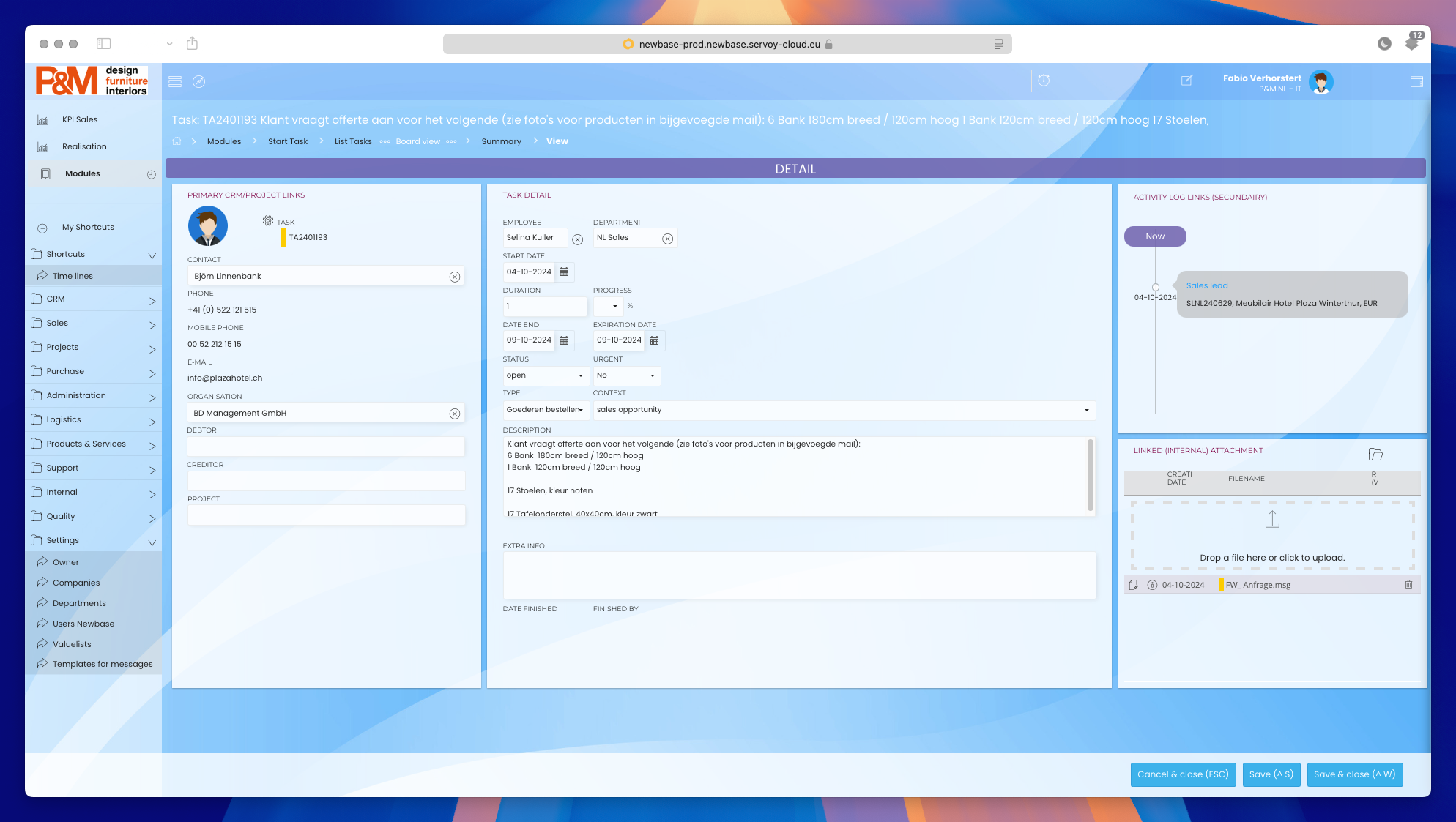
- Attach the mail to the task for reference.
Important
It’s important that you attach the relevant mail to the task so the assigned employee can see what this is about.
#### Step 2: Creating a lead based on the task **Objective**: After the task has been handled, it is time to create a new lead and attach that lead to a task.
-
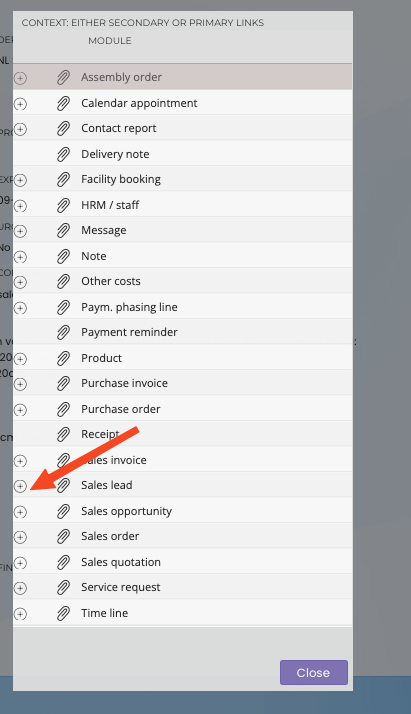
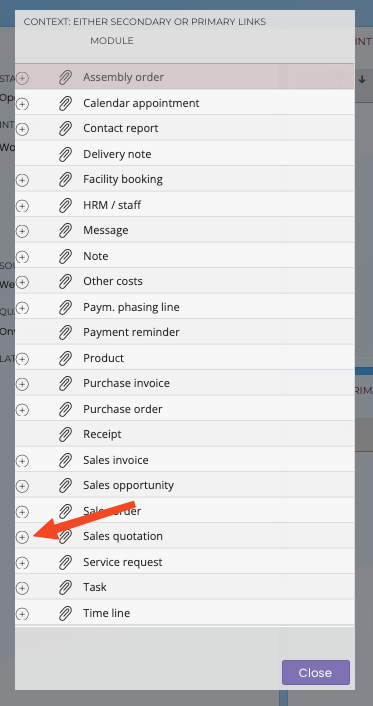
From you’re (newly created or existing) task, click on the paperclip in the top right and click on the small + icon next to Sales lead
-
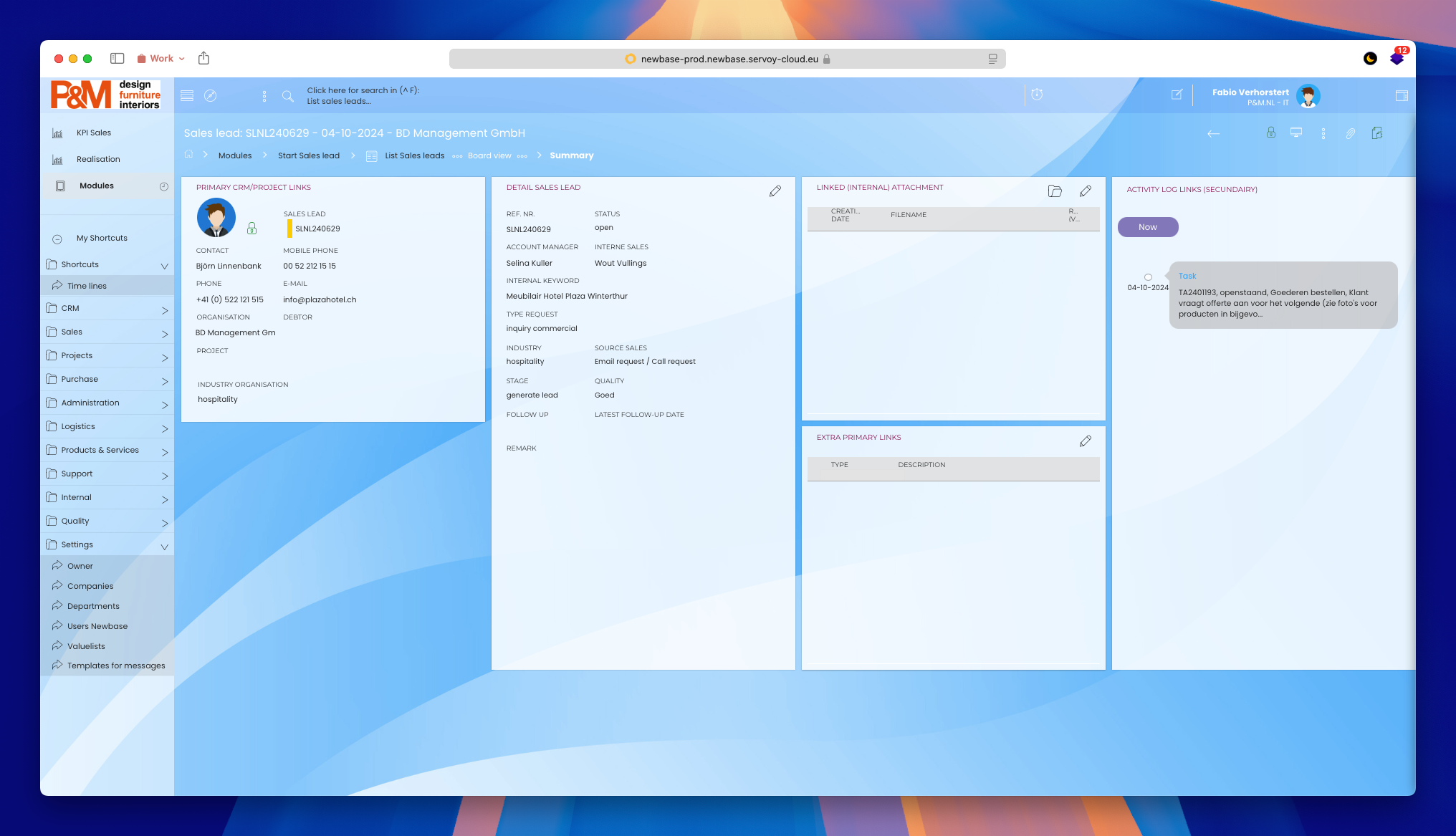
After creating a sales lead, You’ll have to fill in the necessary information.
Note
Note that the application might not have all the necessary information to fill out the contact information. That’s totally fine.
#### Step 3: Creating a Sales Quotation **Objective**: When a lead leads to a quotation, that's a good thing. But first We'll have to make a organisation before we can create our quotation.
- Go to the Organisation module Click on New and fill in the necessary information.
- once done, add the necessary Active contacts and reachability. Also fill in the addresses.
TIP
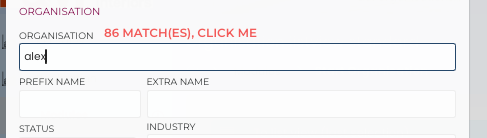
If the organisation exists, you’ll get a prompt saying so.
- Go to the Debtor module and click on new.
- Search the organisation you’ve just made make a new debtor out of it.
- Click on the colorblock in the top left and select the company where the customer is originating from.
General rule of assigning the correct companies
Here at P&M we work with multiple entities. This might be confusing for some, so in order to help, I’ve written a short example below:
- P&M Furniture Nederland BV: Generally all Dutch customers go here.
- P&M Furniture GmbH: Generally all German Customers
- P&M Furniture SRL: Generally all Romanian Customers
- P&M Furniture Facilities BV: We’ll cover this later in bit.
-
Go back to your existing lead, click on the paperclip in the top right and click on the small + icon next to Sales quotation
-
Once created, we can start filling in the Sales quotation.
-
Click on the colorblock in the top left and select the company where the customer is originating from.
General rule of assigning the correct companies
Here at P&M we work with multiple entities. This might be confusing for some, so in order to help, I’ve written a short example below:
- P&M Furniture Nederland BV: All Dutch
- P&M Furniture GmbH: All German Customers
- P&M Furniture SRL: All Romanian Customers
- P&M Furniture Facilities BV: We’ll cover this in bit.
- Now fill in the rest of the information
- Attach the debtor
- Attach the organisation
- Attach the Account manager
- Fill in the source
- Fill in the Forecast
- Fill in the Industry and Stage.
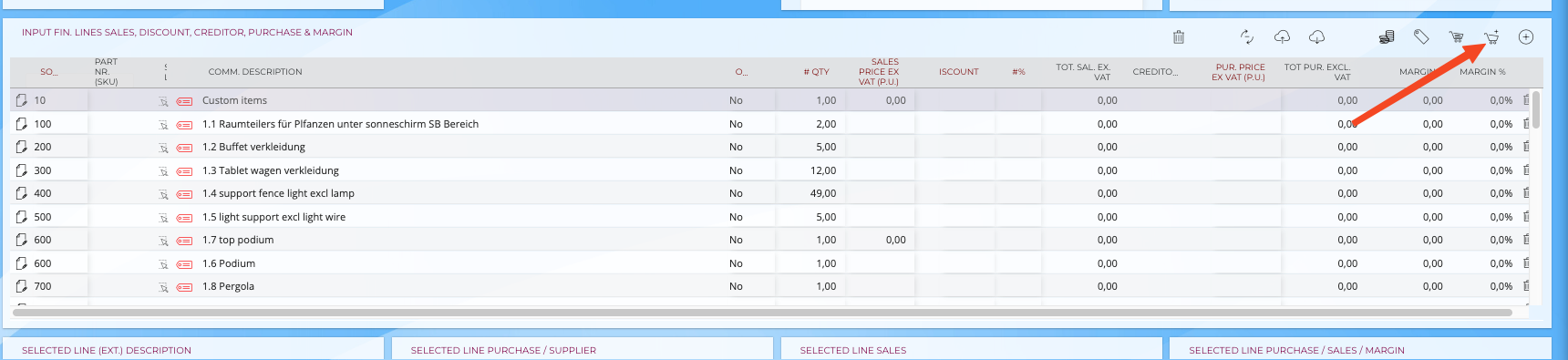
- Add the necessary products that the customer might want using the shopping cart in the top right of the relevant widget
TIP
If the product is not available, you can the + icon on the right to create a custom product
Step 4: Creating a Sales Order
Objective: Now we’ll create a sales order based of a Sales quotation. Here is where things might get tricky, so read carefully!
- Go back to your existing Sales quotation
- click on the duplication icon in the top right.

- click on “duplicate > Sales order”
- De information should be copied from your sales quotation
- Adjust anything that you might want to change,
- click on the duplication icon in the top right.
- Save, close & lock once your done
Duplicating sales orders to the correct Company
Depending on which company the sales quotation originated, you’d have to duplicate the just created sales order and duplicate that to another company. But don’t worry! It will be explained here
- P&M Furniture Nederland BV → P&M Furniture Facilities BV
- P&M Furniture GmbH → P&M Furniture Facilities BV
- P&M Furniture SRL Orders do not have to be duplicated!
- click on the duplication icon in the top right.
- Click on “duplicate > Sales order”
- De information should be copied from your sales quotation
- Remove the Debtor from the duplicated order.
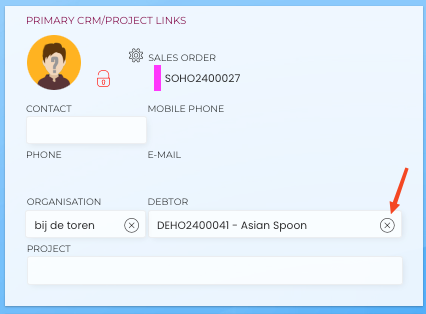
- Click on the colored bar in the top right and change it to the correct Company. In the example above it was a P&M Furniture Nederland BV Order so we will change that to P&M Furniture Facilities BV.
- Change the debtor to P&M Furniture Nederland BV
- Remove the previously attached account manager and change that to Newbase
- Save, Close & Lock the order.
Step 5: Creating a Customer project
Objective: From this point on we’ll have to attach the P&M Furniture Facilities BV. Sales order to a Customer project. We don’t have one yet, so we are going to create one.
- Go to the customer projects module and click on New.
- Change the color code to P&M Furniture Facilities BV
- Attach the debtor
- Fill in the Organisation
- Fill in the project type
- Fill in the project name
Project naming convention
The naming convention for the project is: “Organisation name - Order number of the original order. Example in this case because the original order came from P&M Furniture Nederland BV the name of the project would be: Asian Spoon - SOHO2400027
- Now that the project has been created, you can go back to the P&M Furniture Facilities BV Sales order and attach the project in that order.
Conclusion
This is the process of creating a sales order that ecompasses multiple companies. If you have any questions regarding this document feel free to contact me at fabio@pmfurniture.com.